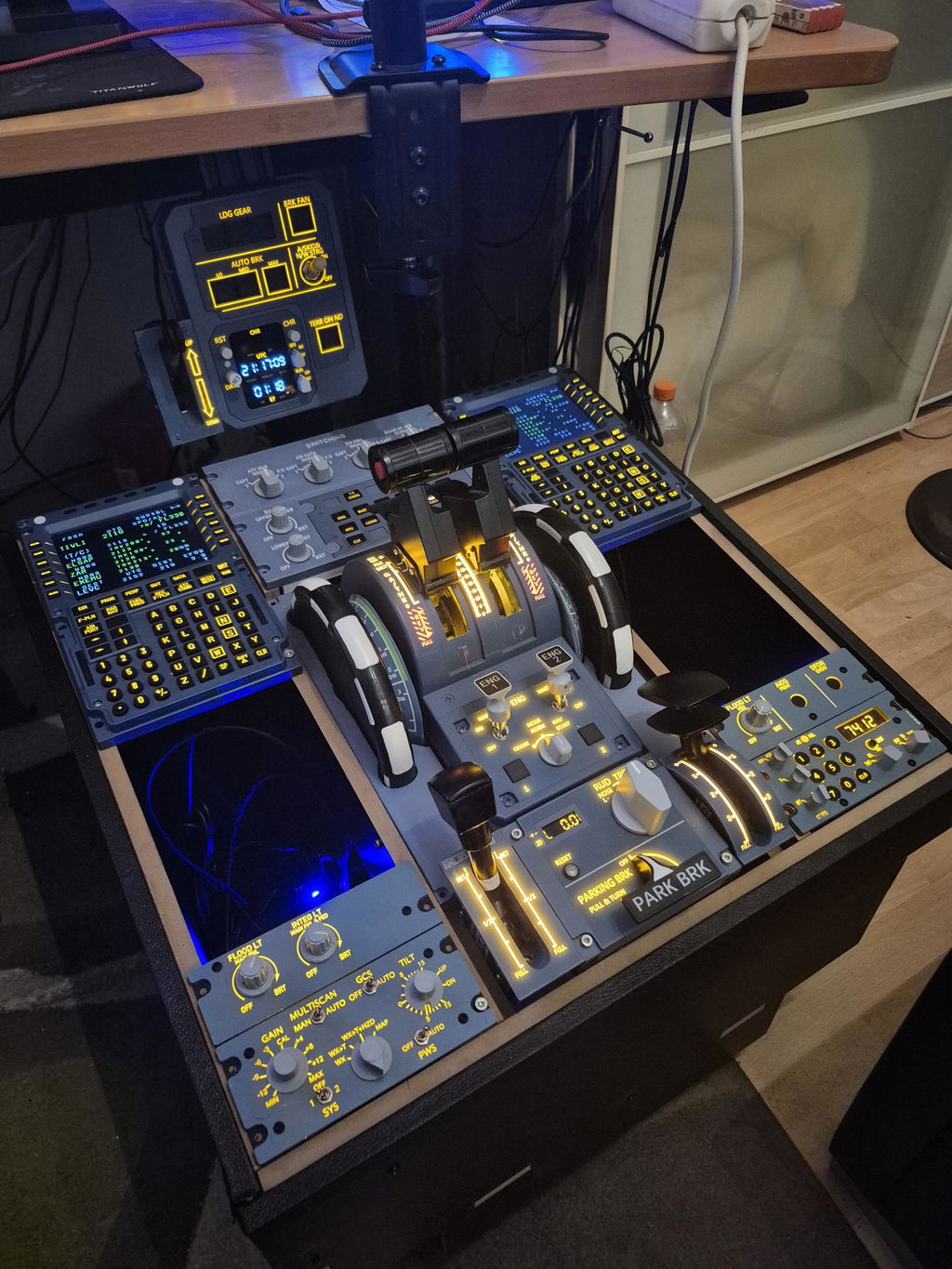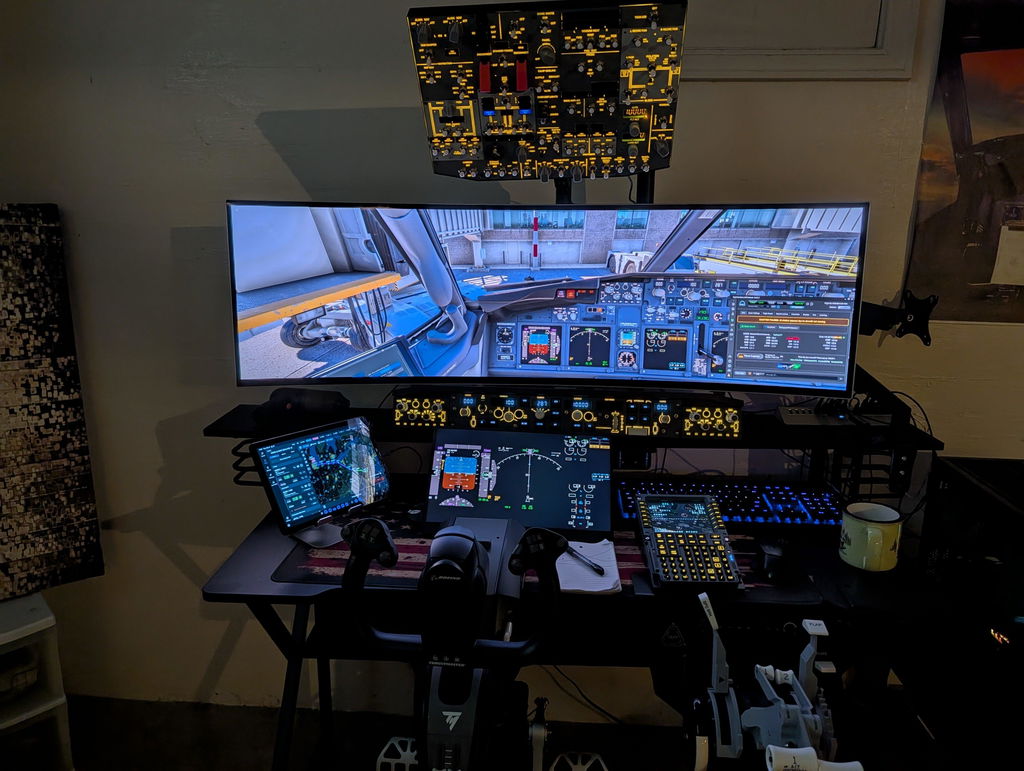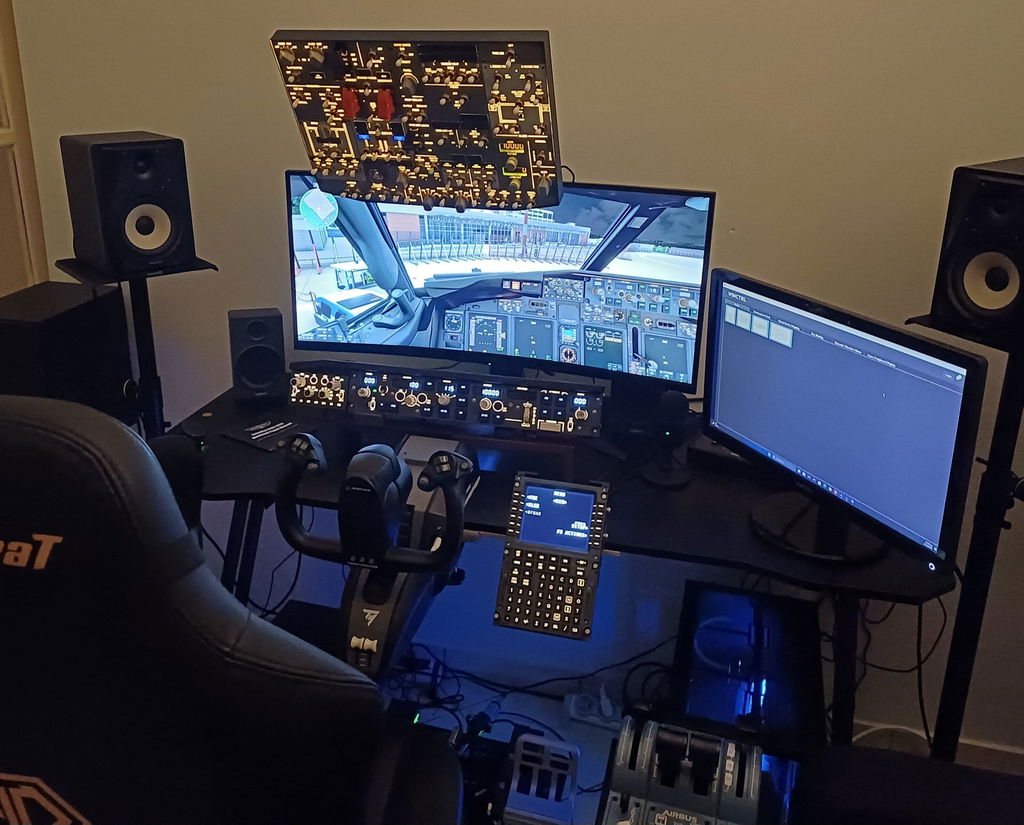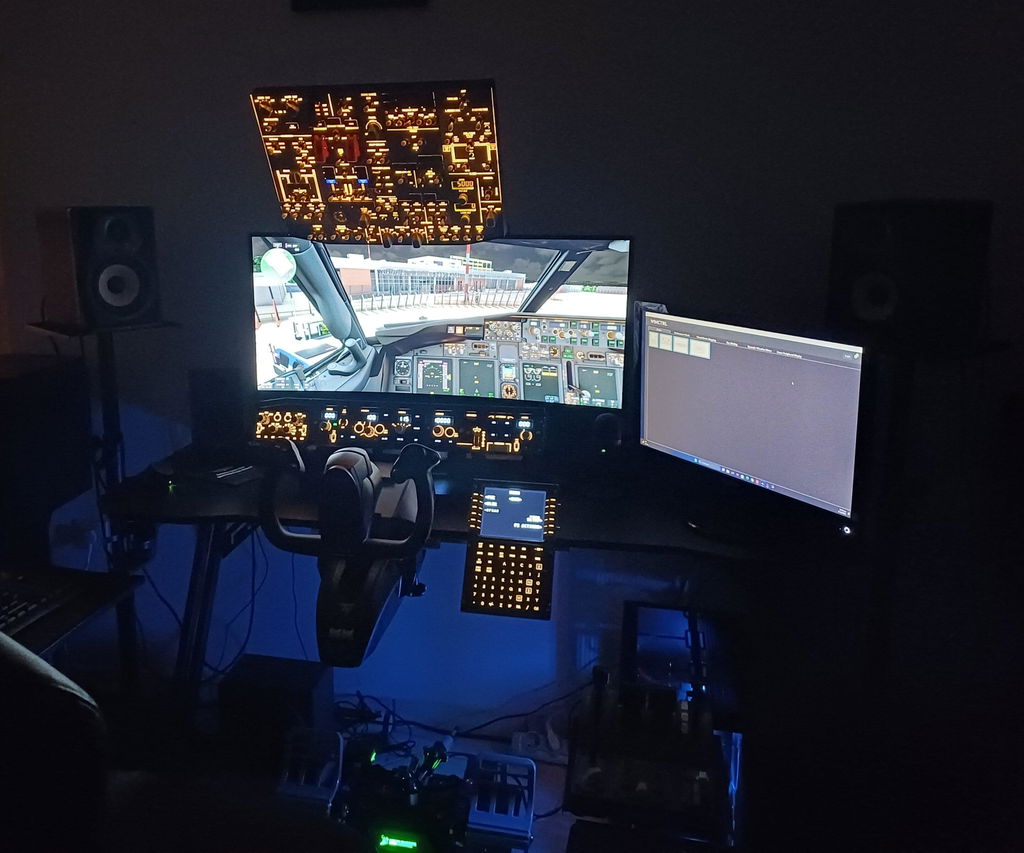


Hey everyone, it’s Frosty Nut here, and today I’m sharing my in-depth review of the Rowsfire A111 B737 Radio & Audio Panel—an exciting piece of flight simulation hardware that finally landed on my desk recently. A huge thank you to Rowsfire for sending this unit over for testing and review; after spending hours with it (and troubleshooting a few hiccups), I’m ready to break down everything you need to know—from the good stuff to the fixes that are desperately needed.
Let’s start with the biggest takeaway right upfront: you need to use the Rowsfire App with this unit—forget MobiFlight, at least for Rowsfire hardware. Don’t get me wrong, MobiFlight is still great for other sim gear like the SL3, but when it comes to the A111, it’s just not cutting it anymore. I’ll dive into why that is later, but first, let’s talk about the unboxing and initial setup.
First things first: when you get any new sim hardware, BACK UP YOUR CONFIGURATION. I cannot stress this enough. I always tell my viewers this, and this time I learned why it’s so critical. When the A111 first arrived, I did a quick test late at night—it worked perfectly. But the next morning? Nothing. Buttons didn’t respond, encoders didn’t register, the display was dead, and even the test mode didn’t light up the LEDs. I panicked, took the unit apart, checked the Arduino and circuit board (all looked fine), and even messaged Jerry at Rowsfire to ask for a replacement. Then it hit me: I hadn’t reflashed the firmware. I went back, reflashed the module, loaded the backup configuration I’d saved earlier, and boom—she worked like a charm. Save yourself the stress: back up your config first.
Now, let’s talk about what I loved about the A111. Visually, it’s a stunner—sleek design, nice color, and the USB port is conveniently located on the bottom. The build quality is a huge step up from the older A105 model, especially the encoders. The A105’s encoders were garbage—loose, wobbly, and prone to sticking—but the A111’s encoders are solid, smooth, and responsive. The buttons feel great too, and the overall layout is intuitive, just like the real B737 overhead panel.
The volume knobs are another win. Unlike the A105’s knobs that spin endlessly (making it impossible to tell if you’re at full volume), the A111’s knobs have a stop—full left for off, full right for max volume. It’s a small detail, but it makes a huge difference in usability. When paired with the Rowsfire App, the unit truly shines: frequencies display correctly (no random extra zeros like in MobiFlight), the screen turns on/off just like in the sim, and all functions (VHF, HF, NAV, ADF) work exactly as they do in a real aircraft. I was genuinely impressed by how seamless the integration is with the Rowsfire App—once I switched over, I never wanted to go back to MobiFlight.
MobiFlight, unfortunately, was a disaster with the A111. The display would show weird numbers (-10,000) when turned off instead of going blank, the backlight wouldn’t turn off, and frequency tuning was glitchy. Even after tweaking the configs, I couldn’t get it to work right. The Rowsfire App fixes all of that—everything is smooth, accurate, and true to life. You can switch back to MobiFlight if you really want (you just need to reflash the firmware), but trust me, you won’t want to.
Now, for the downsides—because no product is perfect, and Rowsfire needs to hear these fixes. Let’s start with the switches: there are two critical mistakes here. First, the RMP power switch is a 3-position switch, but it should only be 2-position (on/off). The middle position does nothing, which is confusing and not true to the real aircraft. Second, the audio panel’s INT/RAD switch is a 2-position switch, but it should be 3-position (RAD - off - INT). These two switches need to be swapped—simple fix, but a necessary one.
The biggest disappointment for me was the audio panel buttons. The small buttons at the bottom (for CALL, MECH, ATT, etc.) have no labels—no engraving, nothing. Worse, they don’t have the orange LEDs underneath that should light up when the cabin crew calls or the intercom goes off. This is a huge oversight. In a real flight sim setup, you need those labels and LEDs to know when you’re being paged—right now, you’re just guessing. This is a must-fix for Rowsfire; it’s a basic usability feature that’s missing from an otherwise quality product.
Another small gripe: the volume knobs don’t have any indicator to show if they’re on or off. Unlike real aircraft knobs that you pull up to activate, these just push down—but there’s no light or visual cue to tell you if they’re active. It’s a minor issue, but it adds unnecessary guesswork.
So, what’s my final verdict? I give the Rowsfire A111 an 8 out of 10. It’s a great unit—well-built, functional, and a huge upgrade over older models. The value for money is there, especially if you use it with the Rowsfire App. But if Rowsfire fixes the switch positions, adds the button labels and LEDs, this could easily be a 9 or 10. It’s still a must-have for B737 sim enthusiasts, but those fixes would take it from “great” to “perfect.”
To wrap things up: if you’re considering the A111, do yourself a favor and use the Rowsfire App. Back up your config first, and be prepared to be impressed by how well it integrates with MSFS or X-Plane. Here’s hoping Rowsfire takes note of these fixes—they’ve built a solid product, and a few tweaks will make it unbeatable.
As always, thanks for watching (and reading!). If you found this review helpful, be sure to like, comment, and subscribe to my channel. And if you’re in the market for sim gear, check out my online store at flightsimsuppliesaustralia.com for 3D printed parts, laser engraving, and more. Stay frosty, and I’ll catch you in the next video!