



Looks Great anad works perfectly!
Hi Theodor, thank you for your fantastic feedback! We're thrilled to hear the product works perfectly for you.
⭐⭐⭐⭐⭐ Absolutely Incredible — The Detail Is Next Level!
The Rowsfire A107Pro completely exceeded my expectations. The build quality, attention to detail, and overall presentation are absolutely incredible. You can immediately tell that a lot of thought went into designing this product.
What really impressed me is how well everything comes together. It feels solid, looks fantastic, and performs exactly the way I hoped it would. The level of detail is something you genuinely have to see for yourself to appreciate.
I’ve used plenty of products in this category, but the A107Pro really stands out. It has that premium, high-quality feel that makes you excited to use it every time.
If you’re considering the A107Pro, I would highly recommend it. For me, it has been an outstanding purchase, and I’m extremely happy with it.
Rowsfire absolutely knocked this one out of the park! 🔥✈️⭐⭐⭐⭐⭐
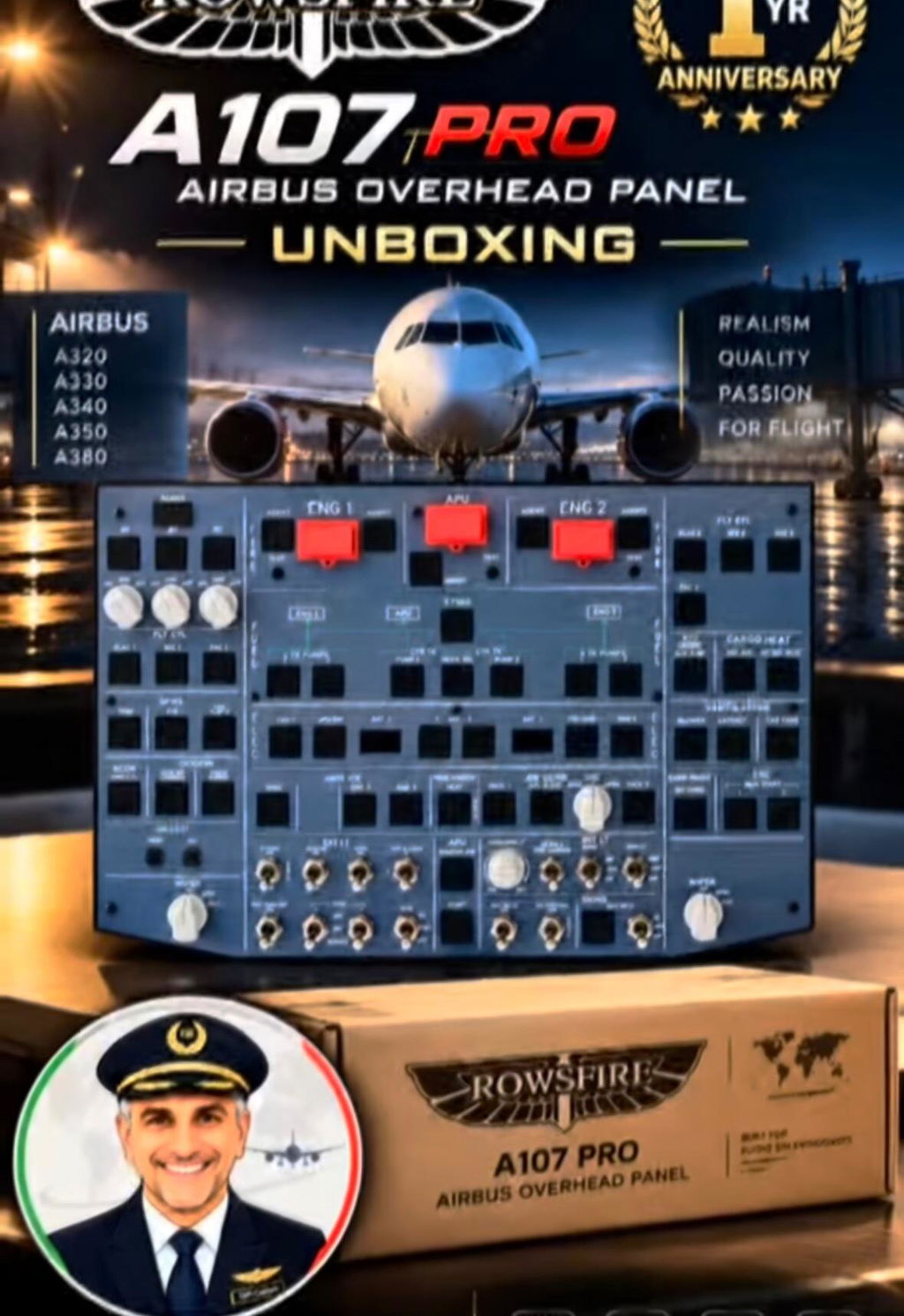
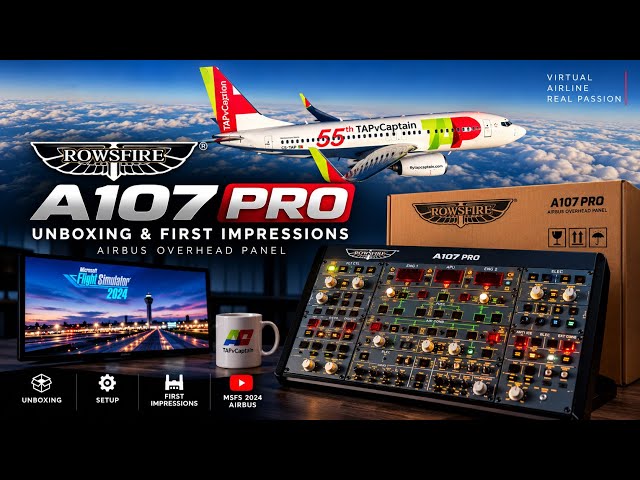
Thank you so much for your fantastic review. We're thrilled to hear you're happy with the Rowsfire A107Pro and appreciate your kind words about the quality and design. It means a lot to us. Enjoy using it, and we're here if you need anything else!
Very easy to install.
The knobs are plastic. The lights (on/off) can be better.
For the rest it is an very good Panel.
Hi sir thank you for your feedback! We're glad to hear you found the panel easy to install and that you're satisfied overall. We'll take your comments about the knobs and lights into consideration for future improvements. Enjoy flying with your new panel!
I am very happy with this B107 overhead panel. After the purchase, they kept me updated on the estimated shipping date. After a month, it arrived here in perfection condition, with the shipping protection option. Installation was well explained, so that made it very easy. Once you install it, the immersion in the simulator improves drastically. The Rowsfire software works perfectly with my PMDG 737-800. In 3 weeks, I have had multiple succesful flights from start to finish, and absolutely no issues. In the future, I will use Mobiflight to program the panel for other aircraft as well. Hopefully this panel will last many years and continue to bring me joy in the simulator.
Thank you so much, Steve! We’re really happy to hear that you’re enjoying the B107 and that everything went smoothly from shipping to installation. It’s great to know that it has made your simulator experience even more immersive. Enjoy your flights! ✈️
After more than two months of testing, the D105 is working well for me and I am happy with the set. I use the Rowsfire D105 together with MobiFlight. After the initial setup and a few small hiccups, the controls are now working as expected. The PFD, MFD and audio panel make the MSFS 2024 experience much more realistic and enjoyable.
Because I already had three monitors connected directly to my PC and there was no room for an additional graphics card, I bought a USB-to-HDMI hub for the D105 displays. This solution is now working well in my setup.
One small downside is the supplied power adapters. There are three adapters included, but my package contained one UK plug and two US plugs. As I live in the Netherlands, I had to buy two additional US-to-EU plug adapters. It would be helpful if Rowsfire included EU plugs, or suitable plug adapters, as standard with orders for Europe.
Unfortunately, delivery took approximately 102 days, from my order on 23 March until final delivery on 3 July. I only started contacting Rowsfire in May, as there was still no clear progress or delivery by then. The original parcel was eventually held by customs, which made the process quite frustrating at times. Rowsfire ultimately sent a replacement D105 via DHL. I did have to pay import and handling fees, but Rowsfire honoured the agreement and reimbursed 50% of those costs.
I would especially like to thank Sara from customer service. Because of the time difference, responses sometimes took a little longer, but she remained friendly, helpful and clear throughout the entire process. She replied to my messages and ultimately helped arrange both the replacement delivery and the reimbursement properly. The refund was received as well.
In short: the delivery experience was long and far from ideal, but the product works well in my MobiFlight/MSFS 2024 setup. Thanks to Sara’s professional and patient support, everything was eventually resolved well.
Fred from the Netherlands

Thank you so much for sharing your experience! We’re glad to hear that the D105 is working well in your setup and that you’re enjoying a more realistic MSFS 2024 experience. We really appreciate your patience and support. Happy flying! ✈️