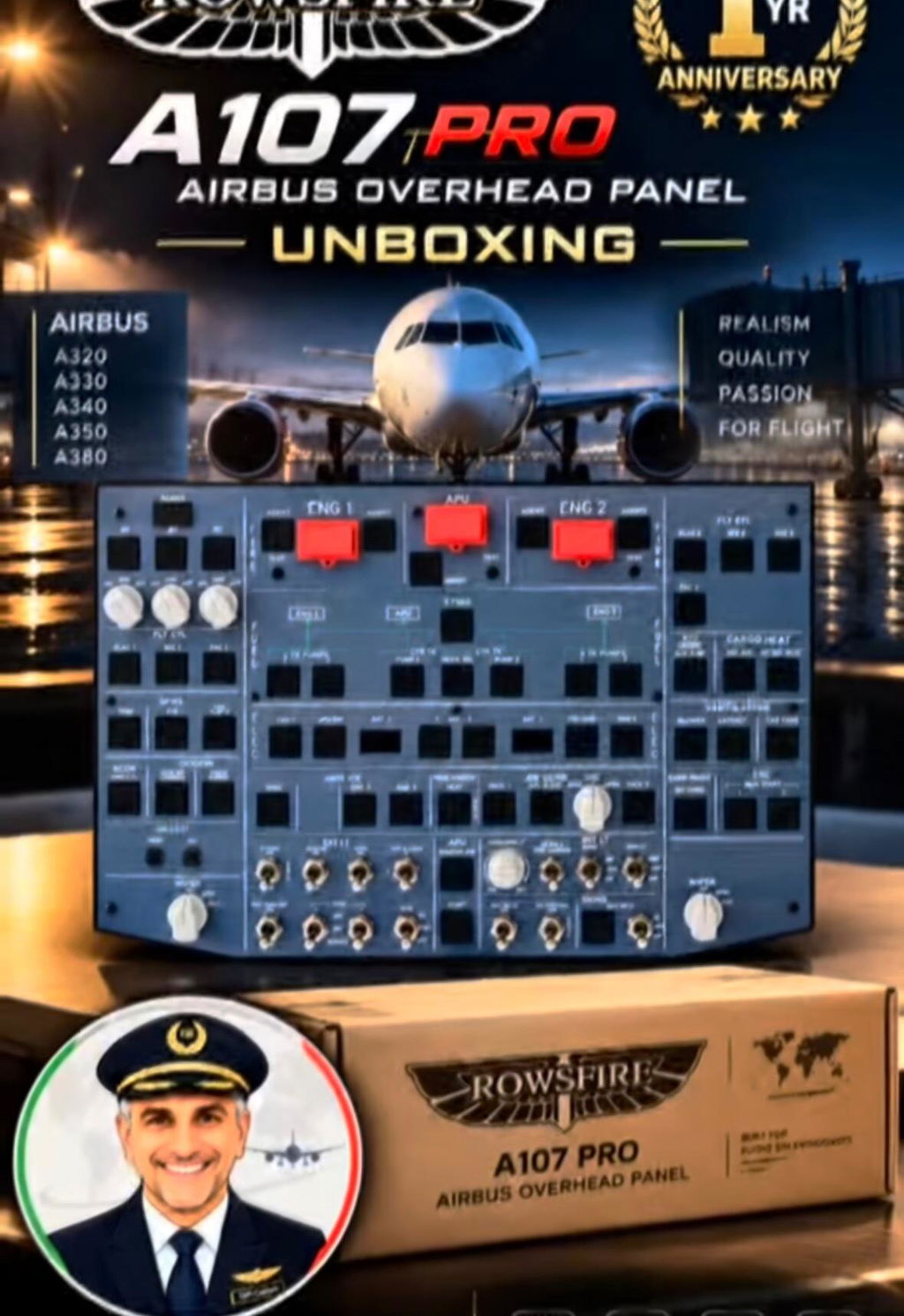


The following steps will guide you through successfully importing the A107 and A103 devices into Mobiflight and getting ready to enter the simulator.
🔌 Step 1: Connect the Devices
Insert your devices, such as A107 and A103.
⚙️ Step 2: Open Mobiflight and Detect Devices
Open Mobiflight and click “Mobiflight Modules”.
At this time, you will see that Mobiflight recognizes both A107 and A103 hardware.
Click “OK”.

📂 Step 3: Import Configuration File for A107
-
Click File → Open
-
First import the configuration file for A107
-
A popup “Orphaned Serials found” will appear
-
Select the file name that corresponds to the device model (e.g., A107)
-
Click “Assign”
-
Then click “OK”
This completes the configuration import for A107.

🔄 Step 4: Merge Configuration File for A103
-
Click File → Merge in Mobiflight
-
Import the configuration file for A103
-
A popup “Orphaned Serials found” will appear
-
Select the file name that corresponds to the device model (e.g., A103)
-
Click “Assign”
-
Then click “OK”


🎯 Configuration Complete
Now both products’ configuration files have been successfully connected to Mobiflight, and you can start entering the game.
✈Rowsfire, a flight simulator brand that combines premium quality with fair pricing. Subscribe for the latest updates and enjoy free worldwide shipping, bringing true to life flying within your reach!