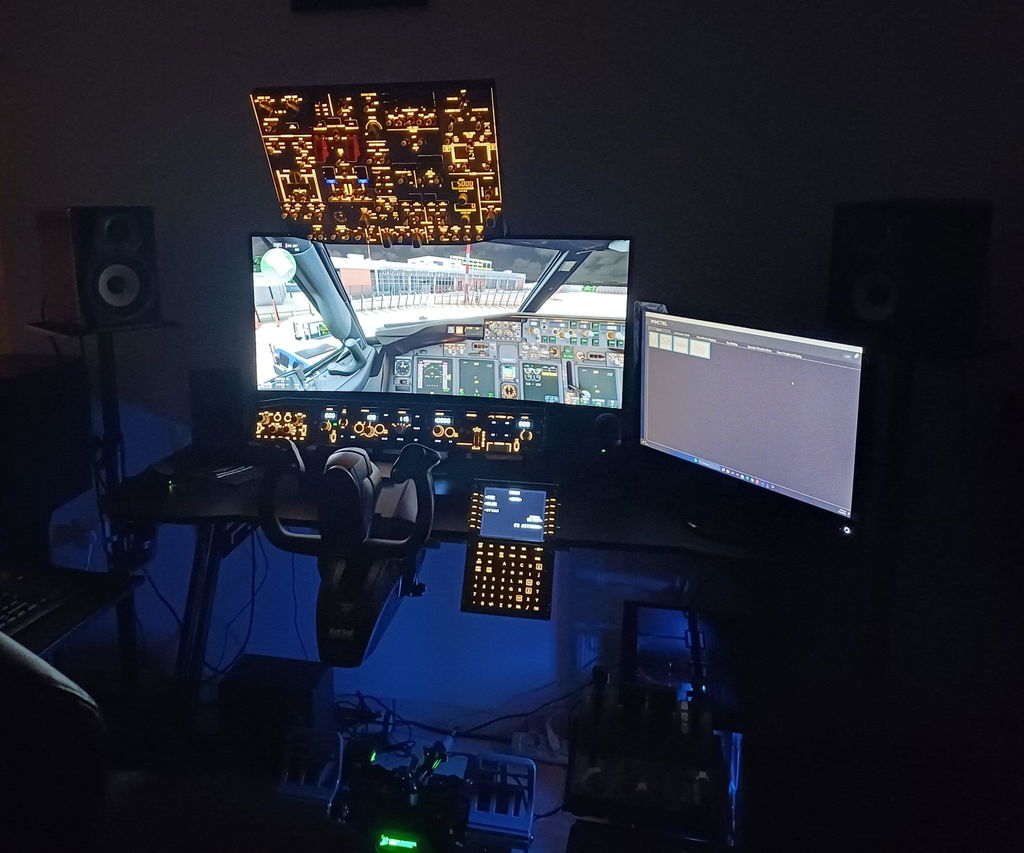

MobiFlight Setup Guide for Rowsfire Panels

ROWSFIRE · QUICK SETUP

Your panel.
Connected with MobiFlight.

Five visual steps to open your configuration and test your first control.

Before downloading: match all three.

Panel model & revision · Simulator · Aircraft add-on

Check model resources →
FOLLOW ALONG

One step at a time.

1 STEP 1

Install MobiFlight.

Close MSFS. Download the stable installer from the official site, unless your configuration specifies another version.

Download MobiFlight ↗
✓ MobiFlight opens on your PC.
MobiFlight Connector
Official installer
Download → Install
Workflow illustration · Use the official download
2 STEP 2

Choose your configuration.

Match the panel revision, simulator and aircraft. Extract the download and keep its companion files together.

Browse model files →
✓ The file notes match your setup.
Panel + revisionSimulatorAircraft
↓
Matching .mfproj / .mcc
Workflow illustration · Match your hardware and aircraft
4 STEP 4

Connect and bind the panel.

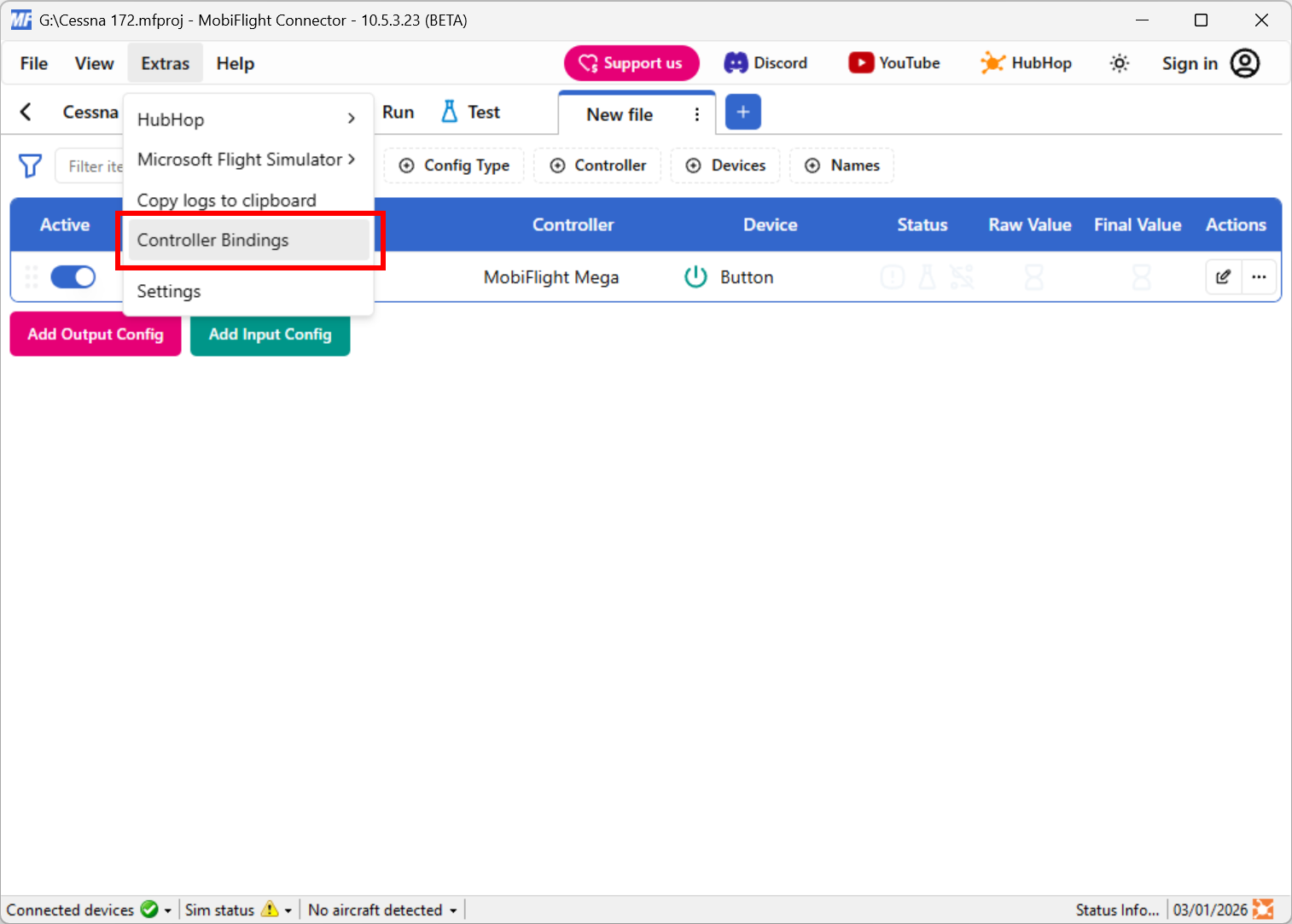
Connect power and USB as your panel manual requires. If the project refers to another controller, check Extras → Controller Bindings.

Binding instructions ↗
✓ The project points to your connected device.
MobiFlight Extras menu with Controller Bindings highlighted
MobiFlight documentation screenshot ↗ · Interface example; version may differ. Tap to enlarge.
5 STEP 5

Load a flight. Press Run.

Load the matching aircraft and let the cockpit finish loading. Press Run, then test one mapped switch or knob.

No response? Start here ↓
✓ The expected cockpit control responds. Check supported displays separately.
Matching aircraft loaded
▶ Run
Turn a knob → Check the cockpit
Workflow illustration · Test one control before adding more panels
ONLY IF YOU NEED IT

Version & software notes.

Which file format should I open?
File What it contains What to do
.mfproj MobiFlight 11+ project with input/output mappings. Open in MobiFlight 11 or later. Earlier versions cannot use it.
.mcc Legacy input/output configuration from MobiFlight 10 and earlier. Open via File → Open. MobiFlight 11 upgrades it to a project.
.mfmc Board/device configuration, not aircraft event mappings. Use only when the exact panel’s instructions require it. It is not a substitute for a project.

Official file format reference →

Do I need WASM, FSUIPC, or an X-Plane connection?
  • MSFS 2020 / 2024: SimConnect profiles use the WASM connection. Check your profile for aircraft-specific prerequisites.
  • FSUIPC-based profiles: follow their setup notes. FSUIPC7 is for MSFS 2020 / 2024, not a universal prerequisite. MobiFlight’s project guide calls for the FSUIPC option for PMDG projects.
  • X-Plane: use an X-Plane aircraft profile and its connection instructions. MSFS WASM installation is not an X-Plane setup step.

WASM guide · FSUIPC downloads · Supported simulators

Installation, firmware & multi-panel notes
  • Keep Windows security protections enabled. If installation is blocked, record the warning and consult official guidance.
  • Test one panel first and close other software controlling the same device.
  • A profile is not firmware. Use instructions for your exact Rowsfire model and revision before flashing or replacing device settings.
  • Want a different software route? Check Rowsfire App support for your setup.

Official getting started guide →

05 · Find the failing link

What is not working?

Windows or MobiFlight does not detect the panel
  • Check the panel’s required power connection and try a known data-capable USB cable and another direct computer USB port.
  • Check Windows Device Manager for the device name and any error code. Record it rather than guessing a driver.
  • Close other software that may have opened the same device or COM port.
  • If a driver is needed, use guidance for the exact panel/revision. Do not assume all Rowsfire panels use CH340.

Official board-driver guide · Ask Rowsfire support

Panel is detected, but the simulator connection shows a warning

Open the simulator status information and note which connection is missing. Check that the intended simulator is running and the project targets it. For FSUIPC-based profiles, verify the required FSUIPC connection separately.

For an MSFS WASM warning, close MSFS and use Extras → Microsoft Flight Simulator → Install WASM Module. If MobiFlight cannot locate the Community folder, follow the official manual-install guide for your MSFS version. Restart and recheck the connection.

In MSFS 2024, also check Marketplace → My Library → Community and verify the Event Module is enabled. Restart MobiFlight after enabling it.

Reinstall WASM · Manual installation · MSFS 2024 enablement

Connected, but switches or displays do not respond correctly
  • Confirm the selected project is for your exact panel revision and aircraft add-on.
  • Check the intended controller binding, press Run, and test one mapped function.
  • Check the profile notes for aircraft options, prerequisites or version limits.
  • Record whether inputs, outputs, or both fail. Do not replace firmware as a general connection fix.

Open guided troubleshooting →

I cannot find a matching configuration, or only have a .mcc file

MobiFlight 11 can open legacy .mcc files and convert them. This does not guarantee the profile supports another aircraft or hardware revision. Check the file notes and keep the original download.

If no exact match is listed, send support your model/revision, simulator, aircraft and MobiFlight version. A generic “A320” filename is not enough to establish compatibility.

Browse model folders · Request help

VIDEO LIBRARY

More ways to follow along.

English, Deutsch & general product tutorials · 3 videos

Older tutorials may show different menus. Use the steps and version notes above.

Deutsch setup tutorial

Deutschsprachige Anleitung; Oberfläche kann abweichen.

Watch on YouTube ↗
View original screenshots · older interface reference

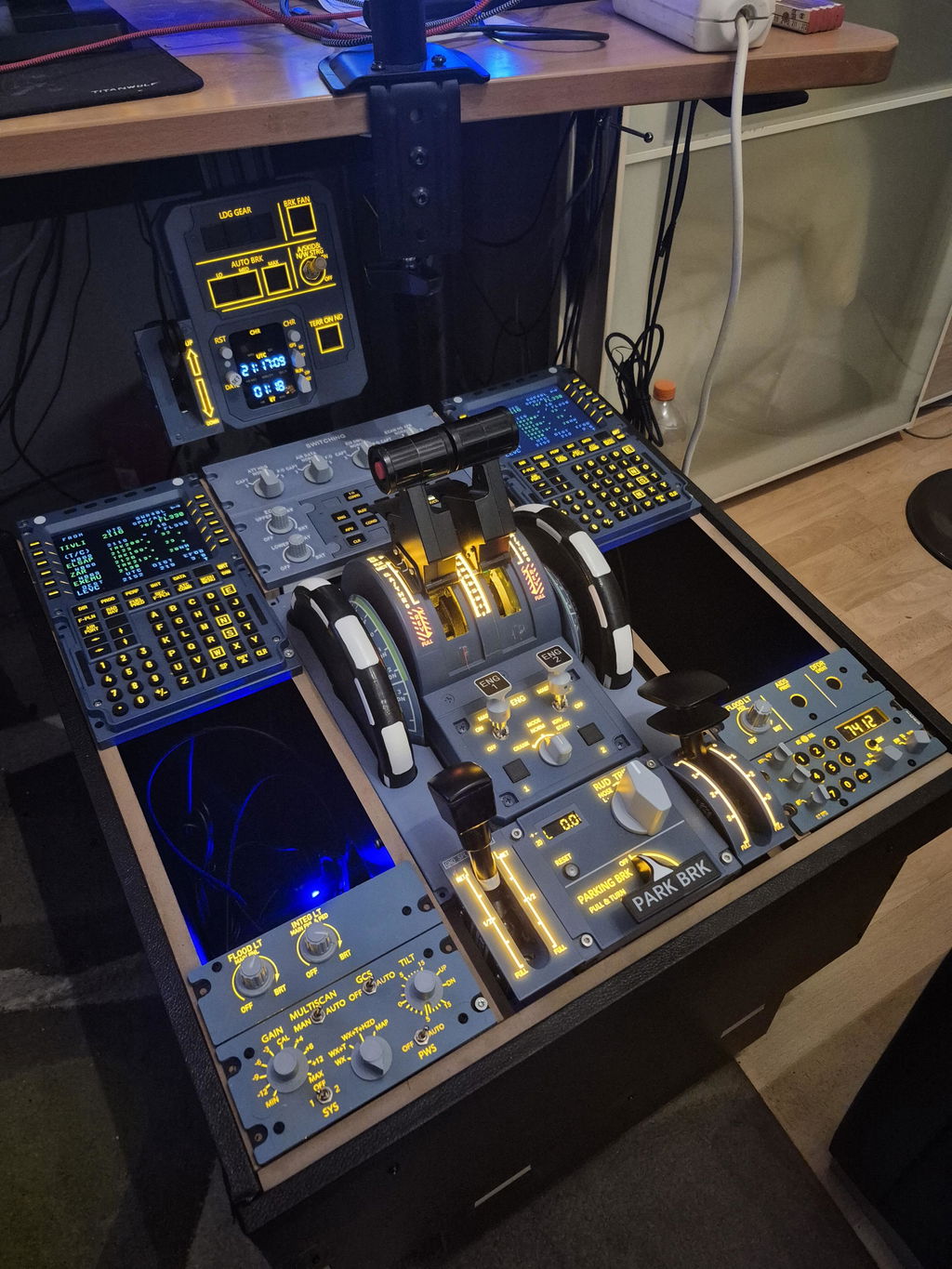
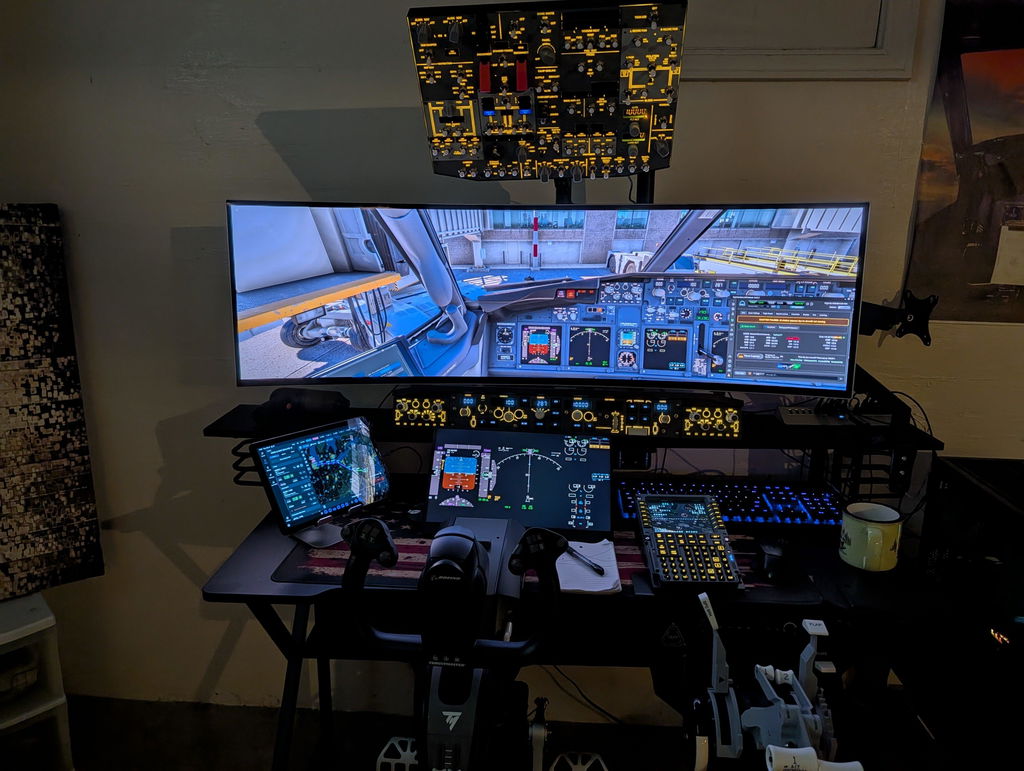
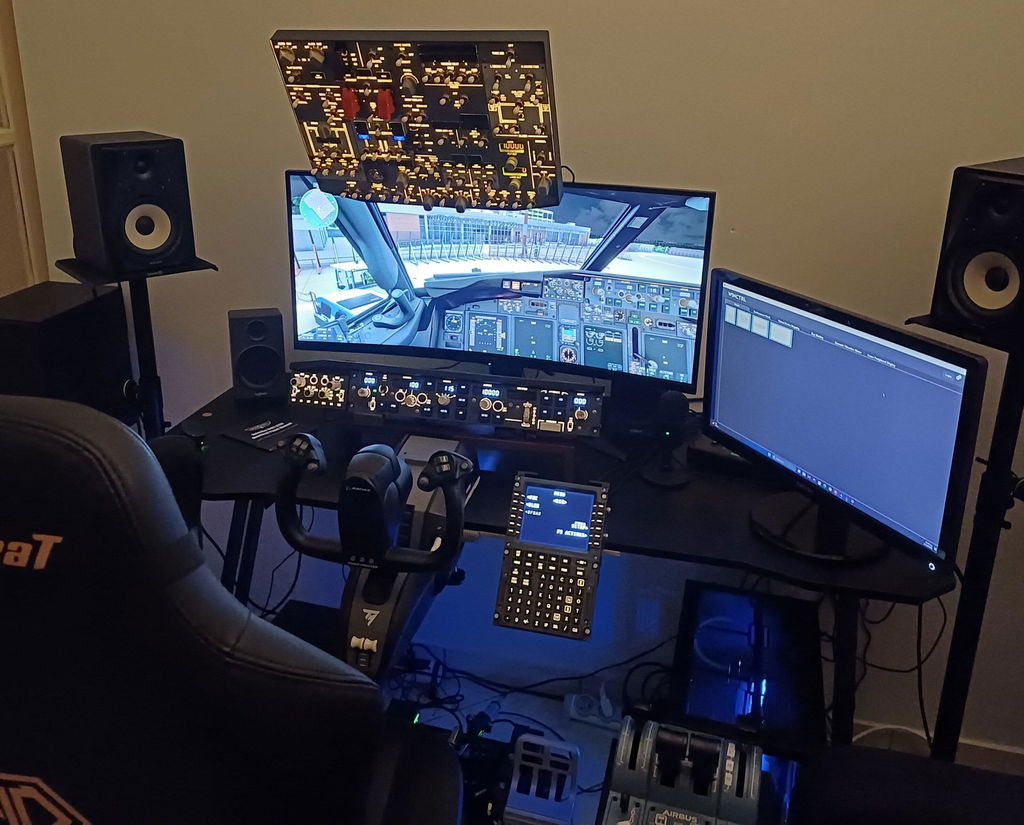
These images come from the previous Rowsfire tutorial. They illustrate an older A320/MSFS workflow and do not establish compatibility with another panel, hardware revision, aircraft, or current software release. Follow the current written instructions for installation and connection checks.

STILL STUCK?

Show us where it stops.

Send your model/revision, software versions, configuration filename and a screenshot of the issue.

Contact support →

Updated November 2, 2026 · Use files for your exact hardware and aircraft. Software screenshots: MobiFlight documentation; examples may show a different release.