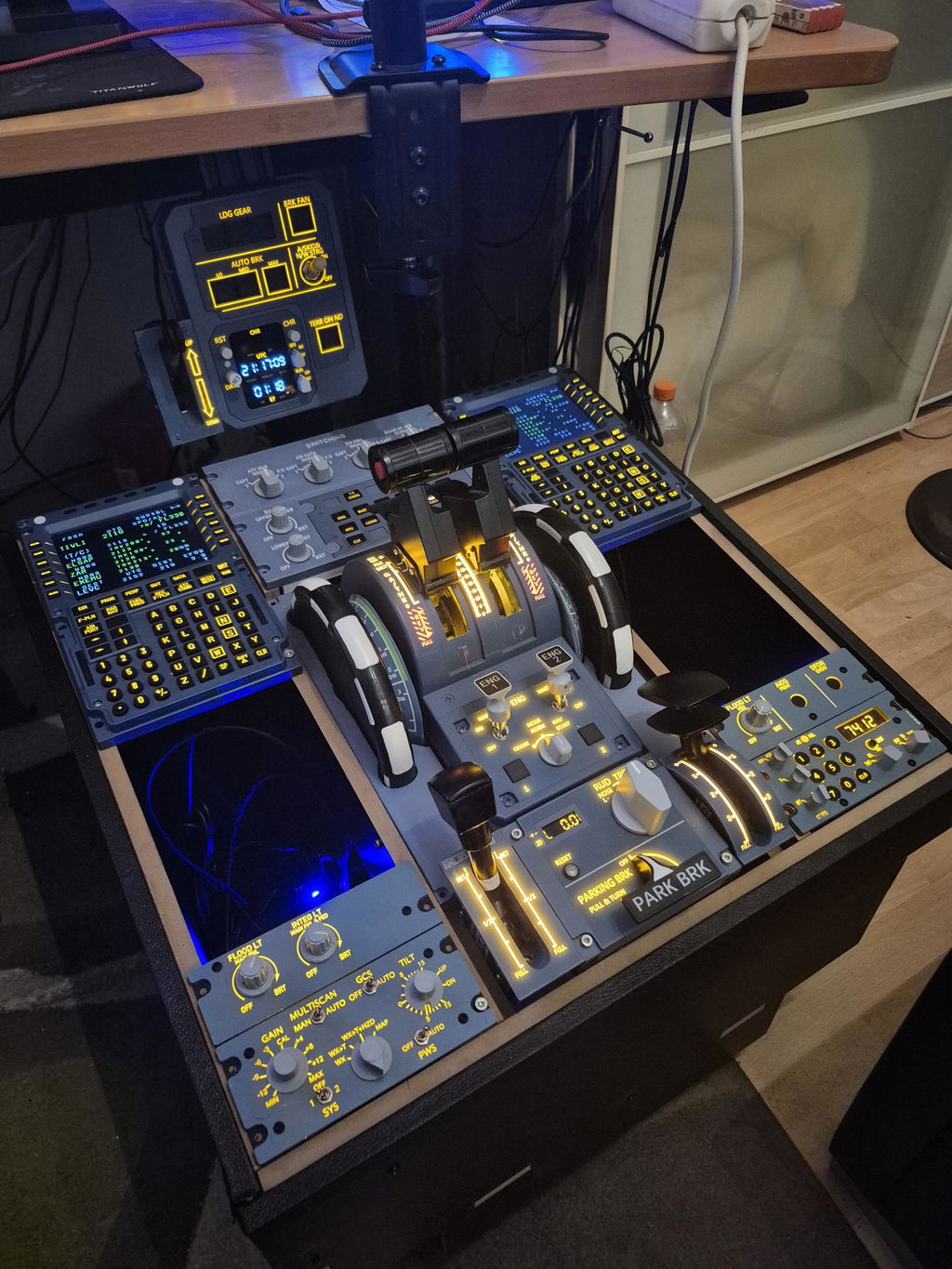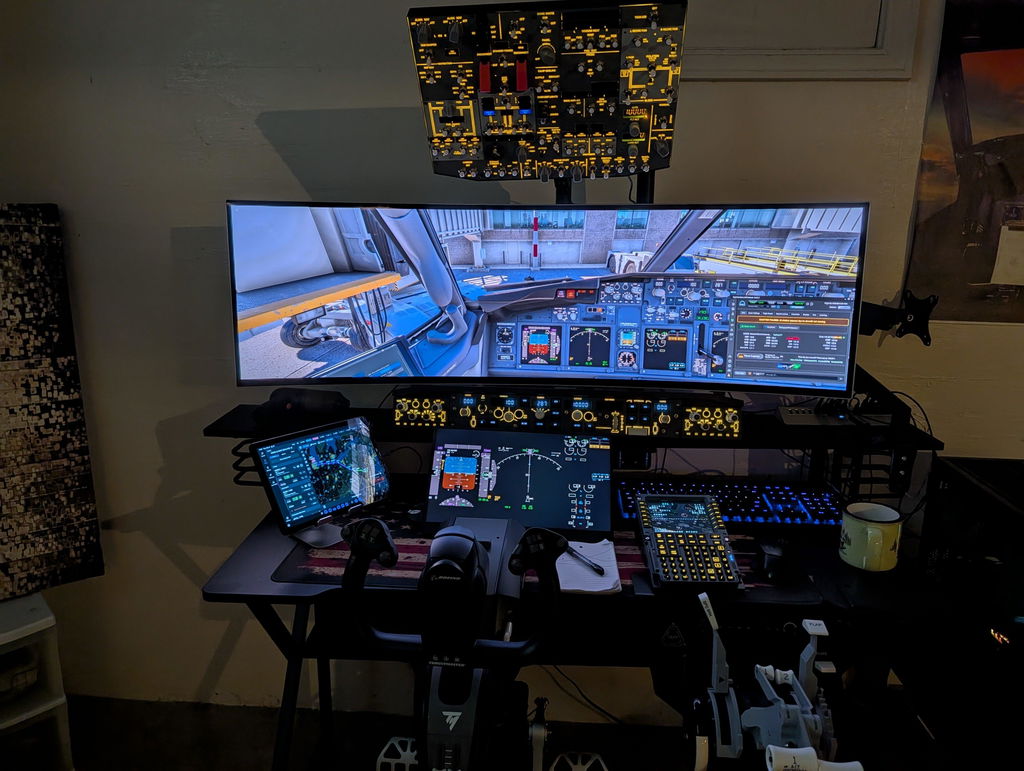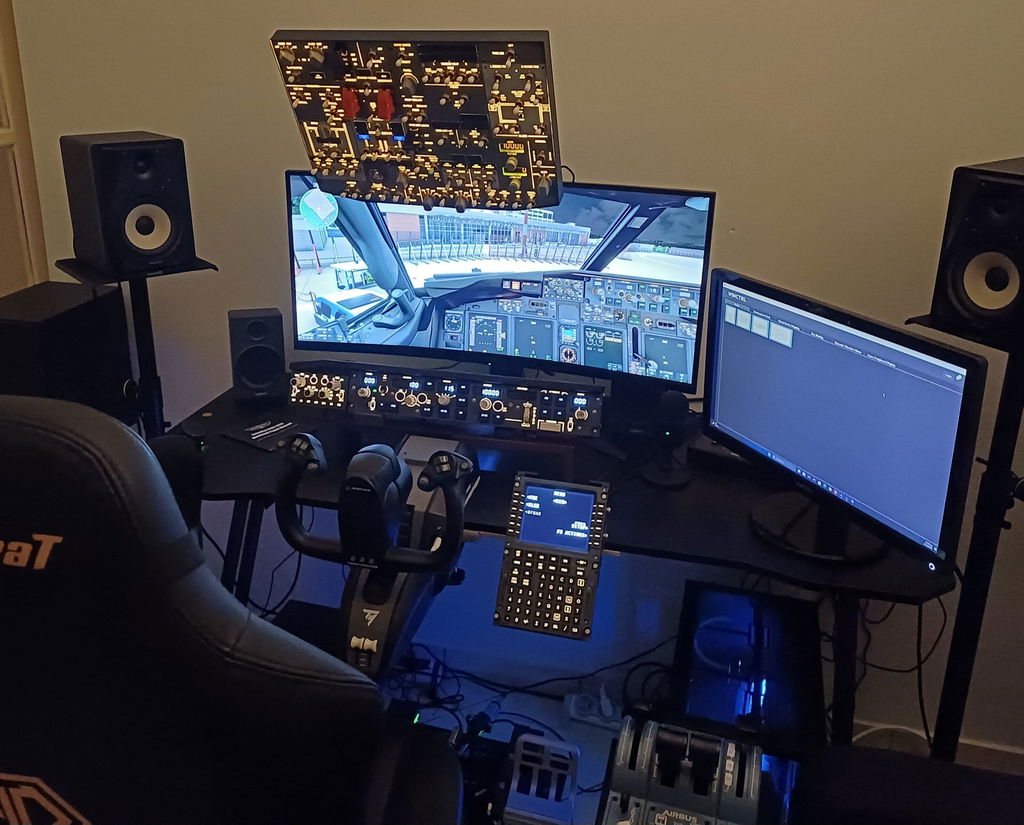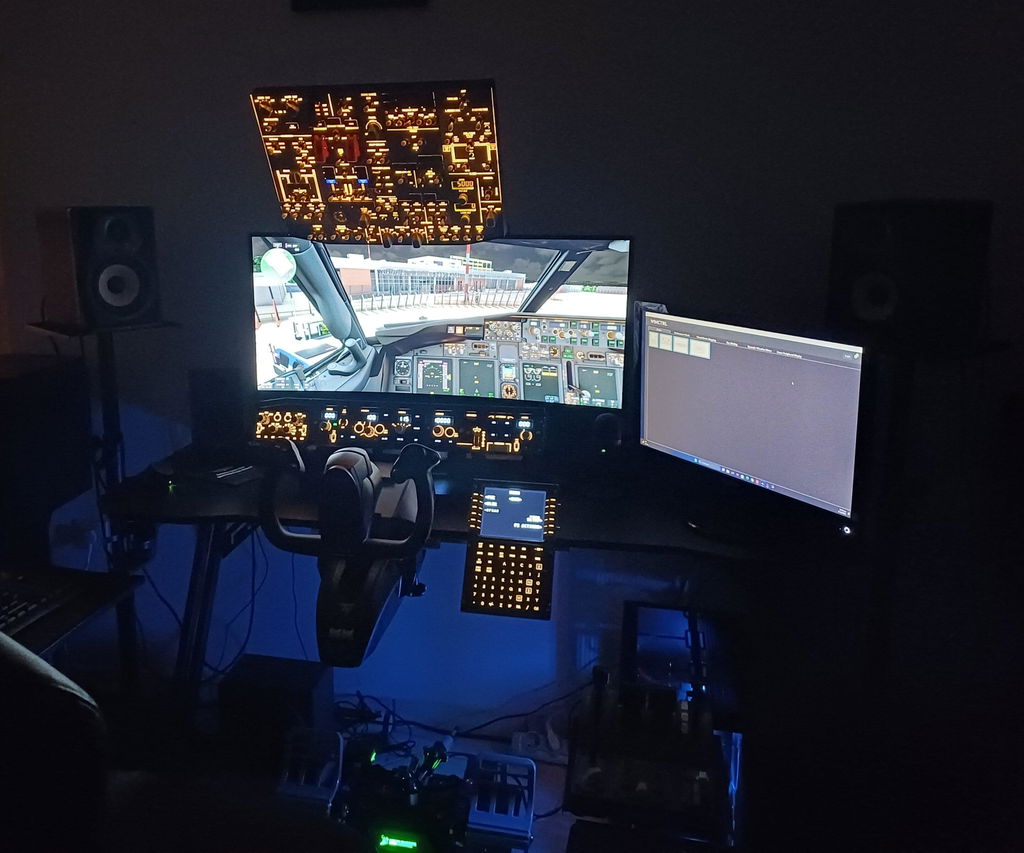


FSUIPC7 & MobiFlight Setup Guide for Rowsfire Panels
FSUIPC7 and MobiFlight are the golden partnership that makes your Rowsfire panels talk to the simulator. Think of FSUIPC7 as the translator between the sim and external devices, and MobiFlight as the configuration hub for your panels. This guide sets both up, in the right order.
How the two tools work together
Your Rowsfire panel sends a button signal; MobiFlight interprets it and knows which cockpit function it maps to; FSUIPC7 transmits that instruction into the simulator; and the sim responds. Get both tools installed and started in the right order, and every switch on your panel simply works.
Step 1 — Install FSUIPC7
-
Download the right version
Get FSUIPC7 from fsuipc.com. Use version 7.3.0 or later.
-
Install to a non-system path
Install into a simple folder such as
C:\FSUIPC7— avoid system directories, Chinese characters or spaces in the path. -
Tick "Add to MSFS EXE.xml"
During installation, enable Add to MSFS EXE.xml so FSUIPC7 launches with the simulator.
-
Register (optional)
The free version supports basic mapping. The paid version (~€30) unlocks advanced features — after installing, open the software, enter your SimMarket license key in the Help menu, and click Register.
-
Fix permissions if needed
If it won't start, right-click the shortcut → Properties and uncheck "Run as administrator."
Step 2 — Install MobiFlight
-
Download MobiFlight
Get it from mobiflight.com.
-
Check system requirements
MobiFlight supports Windows 10/11 (64-bit) only, and needs .NET Framework 4.8 or later pre-installed.
-
Install the CH340 driver if needed
If your panel isn't detected, install the CH340 USB driver so Windows recognises the board.
Step 3 — Connect & load your config
-
Use a rear USB port
Connect your Rowsfire panel to a rear USB 3.0 port on your PC (not a front/hub port) for a stable signal.
-
Start in the correct order
Launch in this sequence: MobiFlight → FSUIPC7 → the simulator. Order matters.
-
Import your config file
In MobiFlight, go to File → Import and load the model-specific
.mccconfiguration file for your panel and aircraft. -
Test the buttons
Use the Test button in MobiFlight to confirm each switch responds before you fly.
Troubleshooting
| Symptom | What to try |
|---|---|
| FSUIPC7 fails to start | ① Check the install path has no Chinese characters or spaces. ② Delete exe.xml and reinstall (path: Documents\Microsoft Flight Simulator\exe.xml). |
| Buttons unresponsive (MobiFlight shows the signal) | ① Confirm the FSUIPC7 status bar is green. ② Close the sim and background apps, then restart in the correct order. ③ Check the sim isn't in windowed mode — fullscreen can block external signals. |
| MobiFlight shows "Offline Mode" | Click the yellow light icon in the status bar to turn off offline mode, and verify the correct simulator path under Settings → Simulator. |
| Permission error (can't save config) | ① Move FSUIPC7 to a non-system directory. ② Right-click the folder → Properties → Security, and give the Users group Full Control. |
Advanced tips
Once it's running smoothly, a few habits keep it that way. Back up your .mcc configuration files to the cloud so a reinstall never costs you your mapping. If you run several panels, keep them organised by their unique device IDs in MobiFlight. And when you hit something new, the Rowsfire community has 3,000+ pilots who've likely solved it already.
Get your config files
Ready-made MobiFlight .mcc profiles for every Rowsfire panel and aircraft, in one place.